Overview of the Sales module in POSExpress
At the Sales screen, also know as the Retail screen, you make the sales transaction happen. The basic steps are you enter the items being sold, you enter to whom they are being sold, and you finalize the payment for those items. Much more can happen at the screen but below you can get some of the basic how tos, and then link to other more complicated how tos as needed.
Navigate to the Sales screen by:
- Clicking the Sales button at the bottom of the POSExpress main screen.
or
- Selecting the menu bar at the top of the screen and selecting Go to then Sales.
This screen displays:
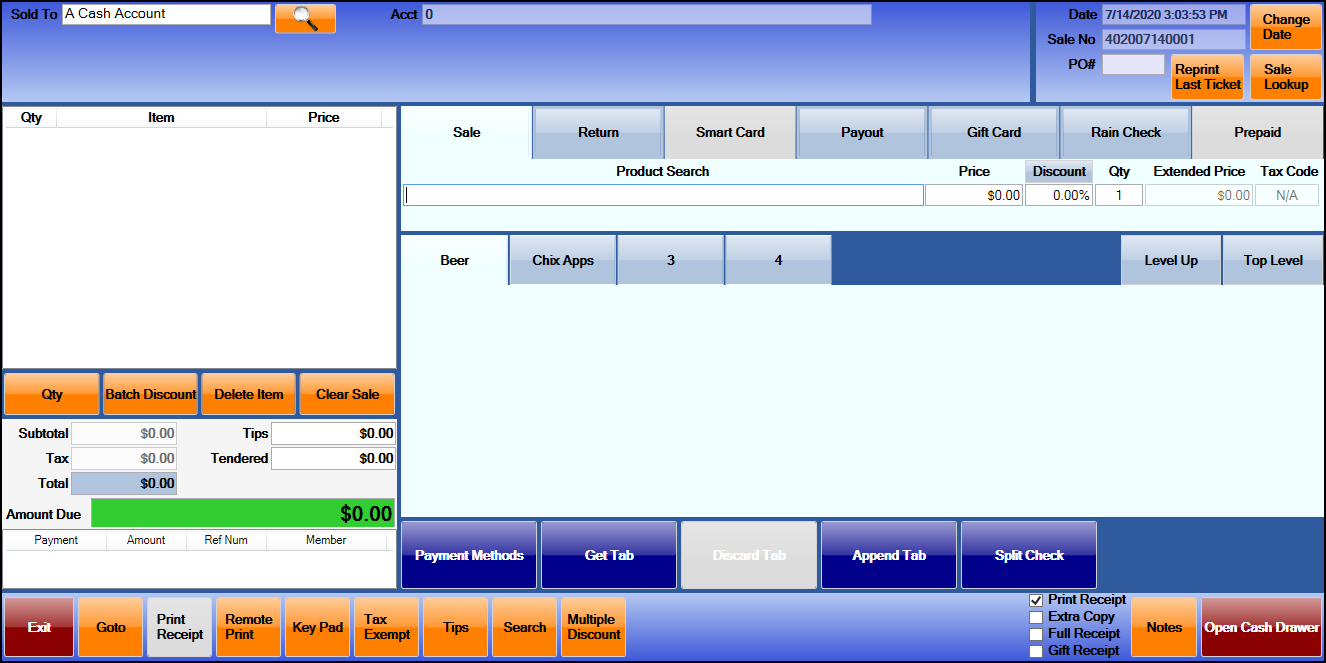
Functions of the Sale screen
At this screen, you can:
- Select the type of customer to ring up - Sold To
- A Members Sales screen

- Enter a few letters of the customer's name and press Enter on your keyboard, or if this is not a customer in your database, enter A Cash Account which can also be set as a default for that field. Jump here for more information
- Search for a product
- Add products/items to a tab
- Enter a return item
- Credit a Smart Card
- Distribute a Payout for a tournament
- Create (and process) a Gift Card
- Process a Rain Check
- Process a Prepaid payment
Related Topics
-
To see a training video on how to use the Sales screen, click here>>
-
To learn how you can customize this screen with Quick Sale buttons, click here>>
-
For more details on using the Sales module, click here>>
-
For our previous documentation on the Sales module, click here>>